

How it works
From a card in your hand to a saved contact in three steps
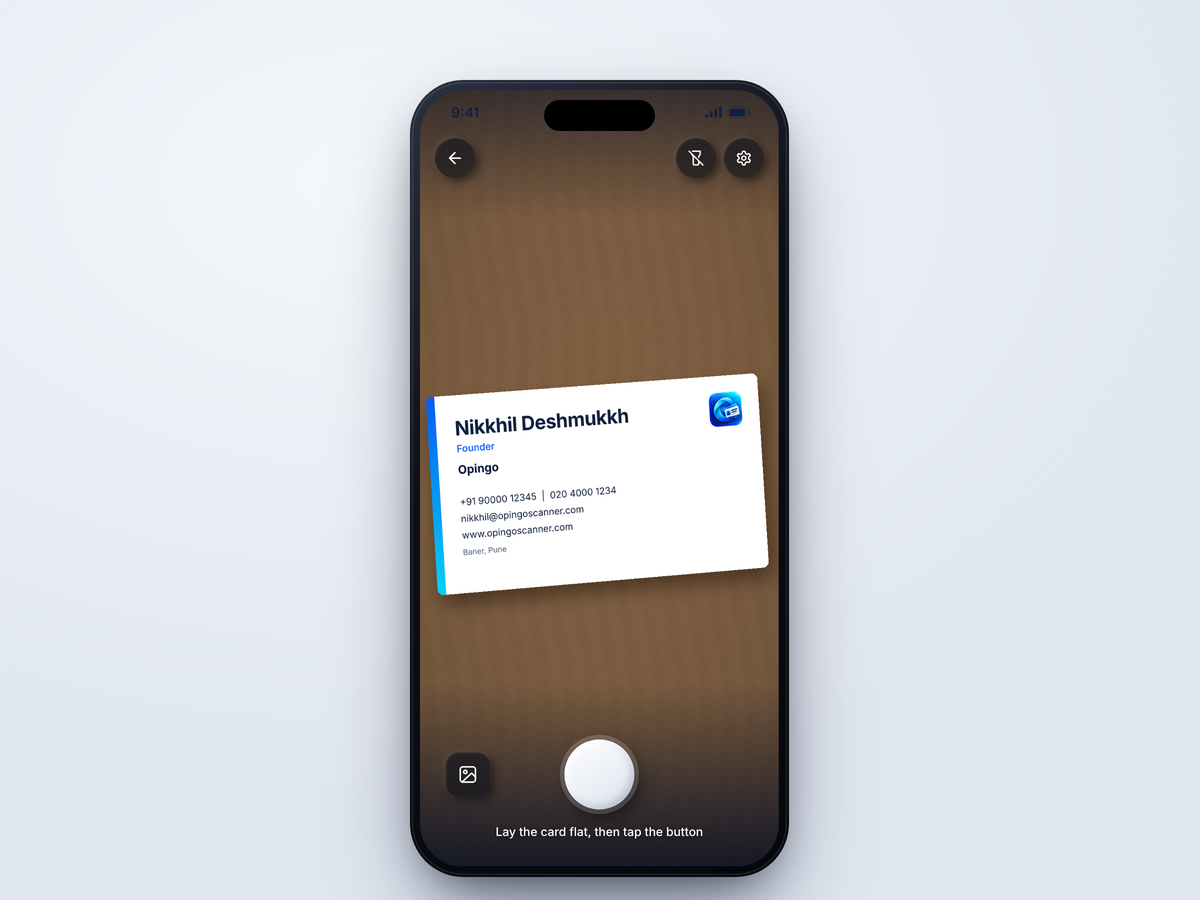
Step 1
Scan
- Open Opingo and tap Scan card.
- Hold the phone over the card, in good light, with the card flat.
- Tap the round button. Opingo takes the picture, finds the card, cuts it out and straightens it. This takes a moment.
Already have a photo of a card? Tap Upload a photo and pick it.
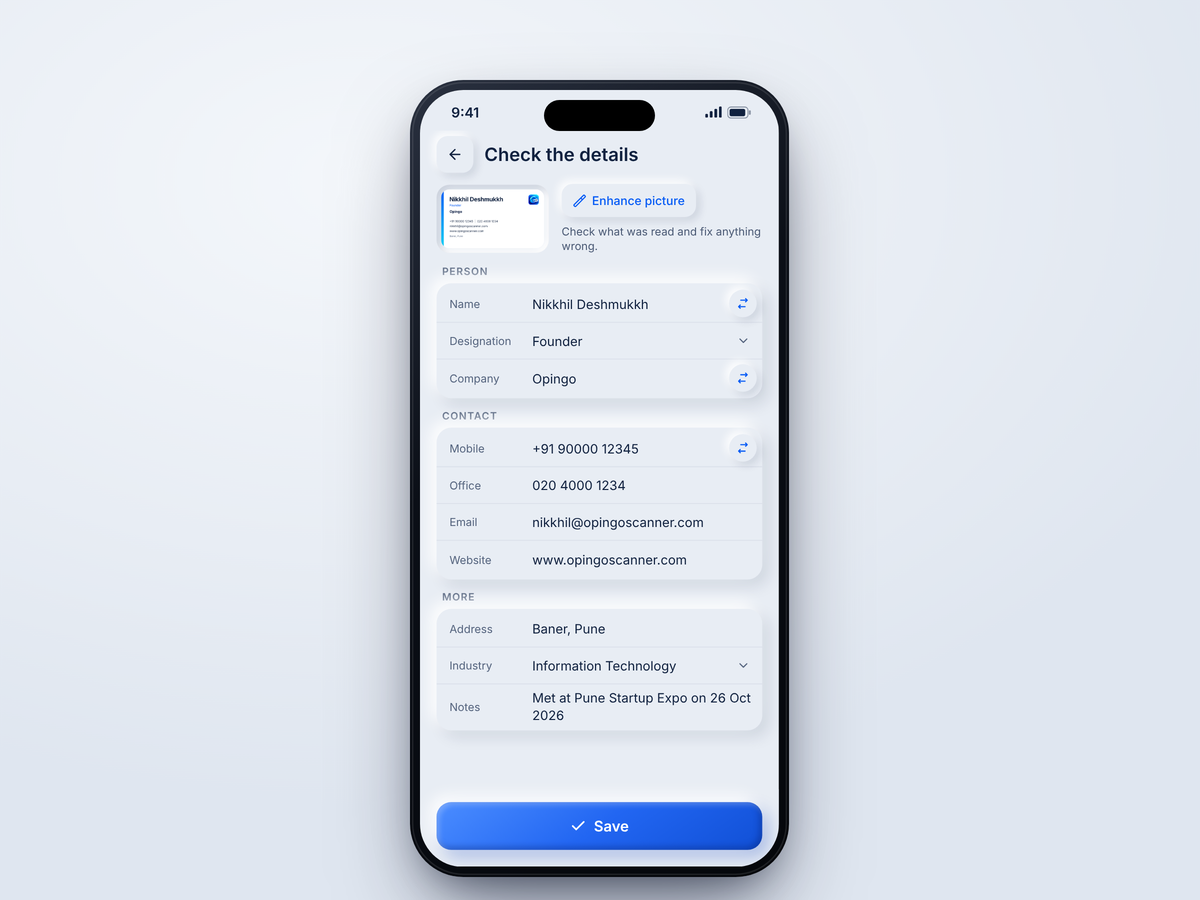
Step 2
Check the details
- Opingo shows the card picture with the details it found under it.
- Tap any field to correct it.
- Tap the swap button to switch Name and Company, or Mobile and Office phone, if they were read the wrong way round.
- A red email means the address looks wrong. Fix it, or the email will not be sent for this card. Everything else still saves.
- Scan the back of the card if it has more information.
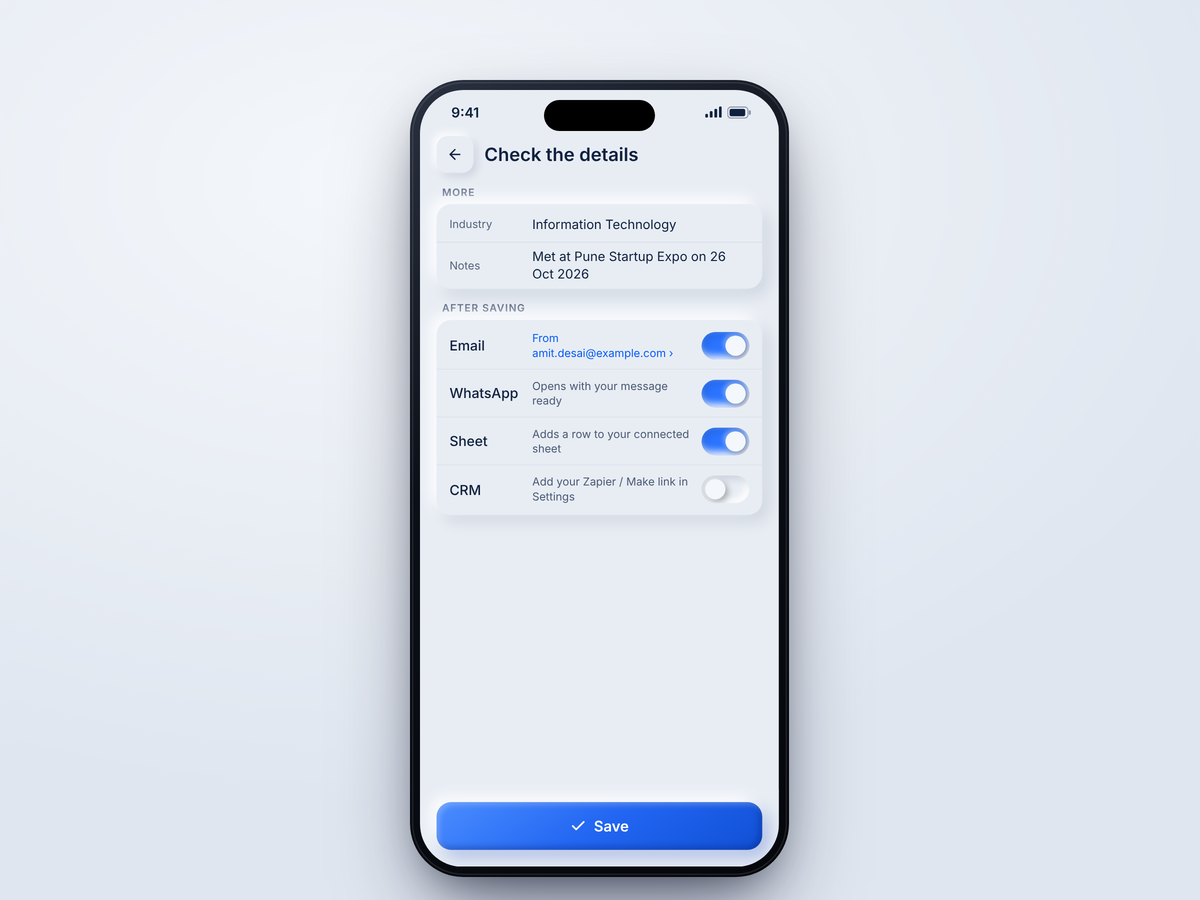
Step 3
Save and follow up
- Tap Save.
- The person is added to your contacts.
- If you have switched on Pro features, the follow-up email, spreadsheet row, WhatsApp message or CRM link goes too.
- When everything is done, tap Scan next card for the next one.
Tips for a good scan
- Put the card on a plain, dark or light surface, flat.
- Use good light, but avoid glare from shiny or laminated cards.
- Keep the whole card in the picture.
- If a card is hard to read, check every field before you save.
Make your next connection count.
Free to download on Google Play and the App Store.